
Connect CubeDrive to your AI tool with MCP
CubeDrive MCP lets approved AI tools connect to your CubeDrive data and workflows through a secure service URL and an API key. This guide shows how to create the key and add the connection in tools such as Codex.
Create and connect your MCP Service API key
You only need three pieces of information: the CubeDrive MCP URL, your generated MCP Service API key, and the header name used by the AI tool.
Log in to CubeDrive
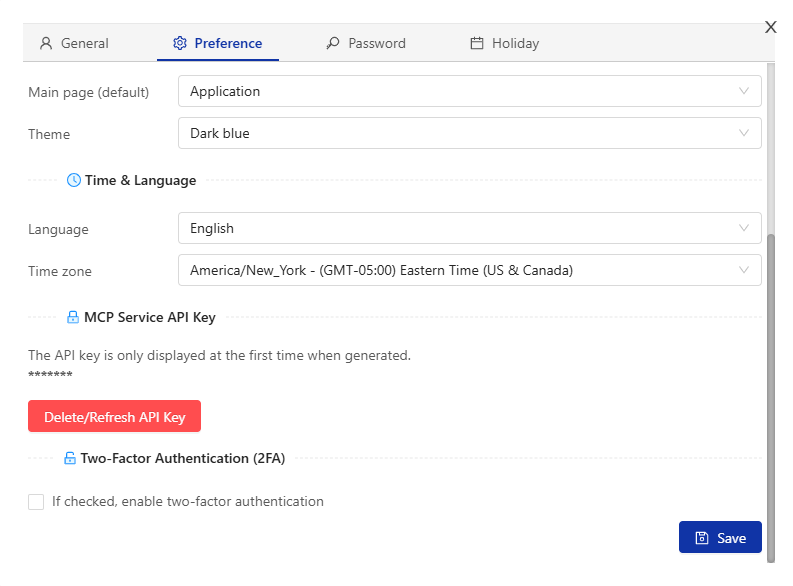
Sign in to your CubeDrive account and open Account > Preference, then find MCP Service API Key.
Create or refresh the API key
Click Delete/Refresh API Key if you need to generate a new key. Copy the key immediately and save it in a secure password manager or private secrets store.
Open your AI tool MCP settings
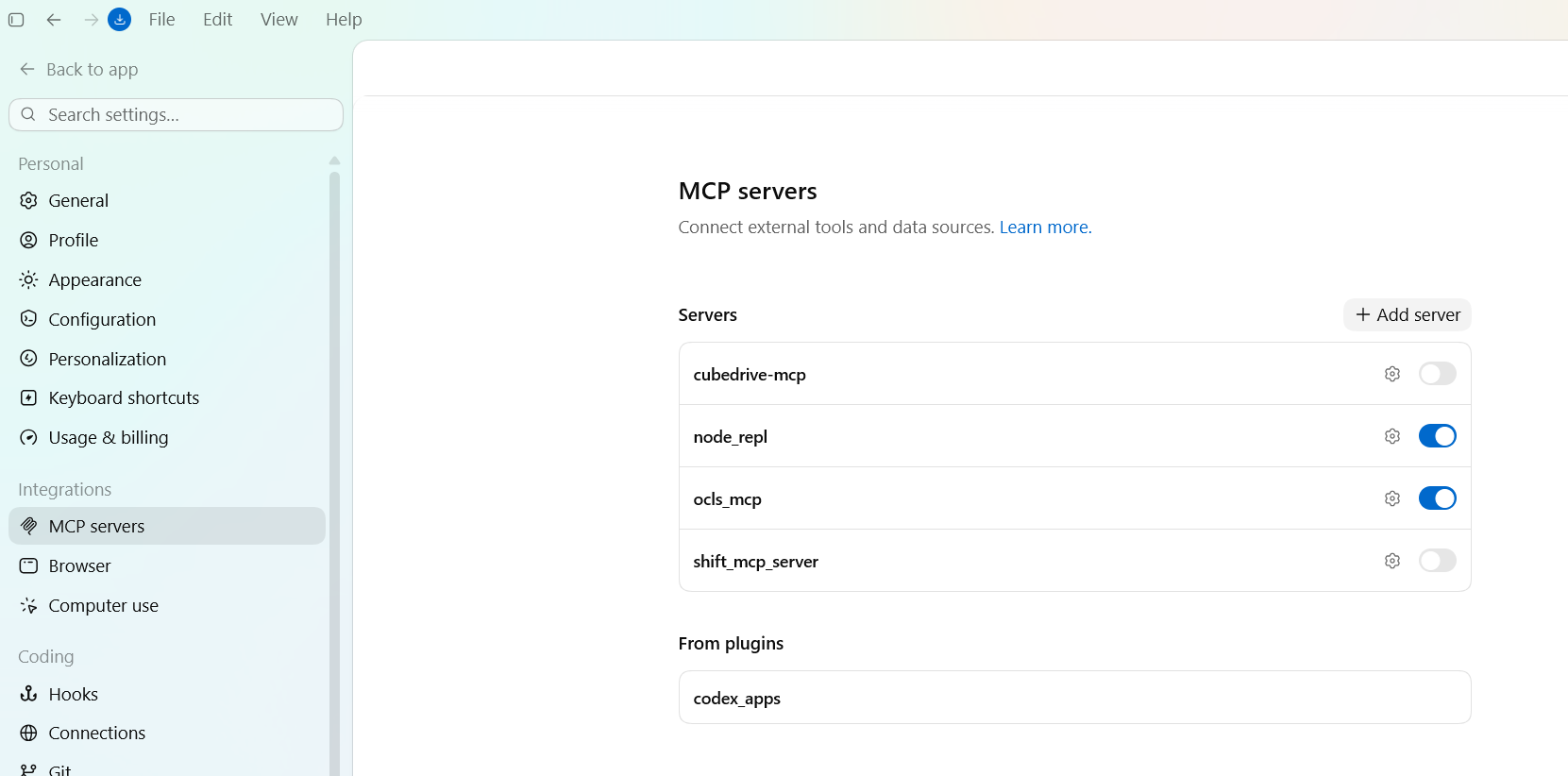
In your AI tool, add or update an MCP server connection. For example, in Codex, open File > MCP servers, then open the MCP configuration screen for the CubeDrive server.
Paste the CubeDrive MCP connection information
Use the CubeDrive MCP call URL and add your API key as a request header.
URL: https://www.cubedrive.com/cubedrive/mcp Header key: x-cubedrive-ak Header value: YOUR_MCP_SERVICE_API_KEY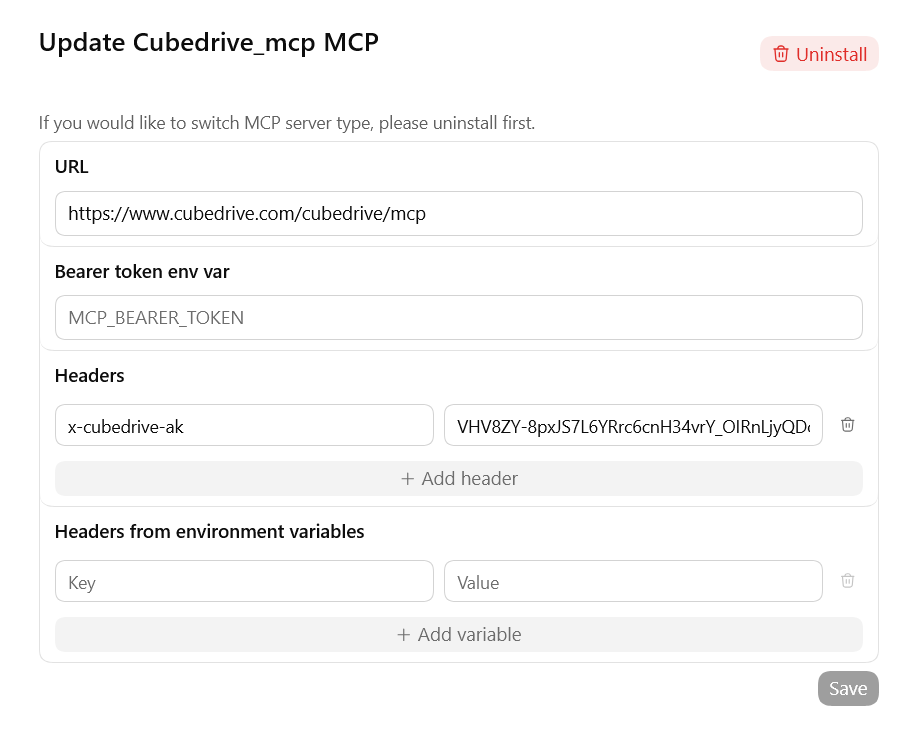
Save and test the connection
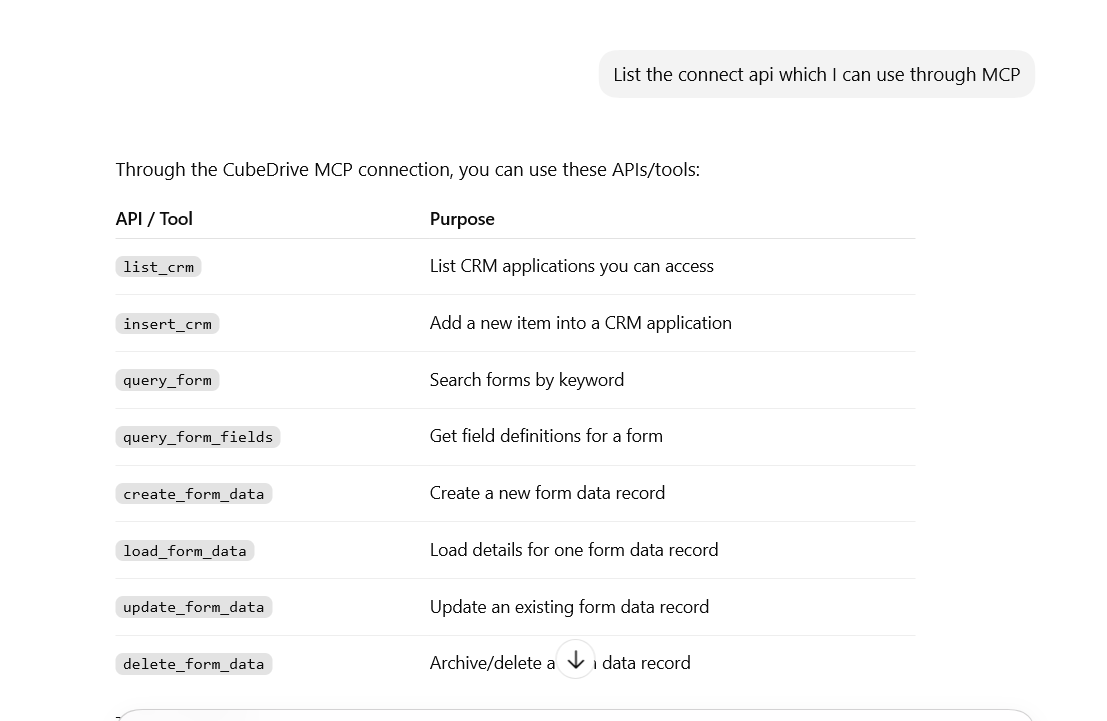
Save the MCP configuration. The AI tool can now call CubeDrive through MCP using the permissions available to the API key.
Connection values
| Call URL | https://www.cubedrive.com/cubedrive/mcp |
|---|---|
| Header name | x-cubedrive-ak |
| Header value | Your MCP Service API key |
Model Context Protocol
MCP is a standard way for AI tools to connect with external applications and data sources. With CubeDrive MCP, approved AI tools can securely work with your CRM, forms, tasks, and workflows through a controlled API connection.
Keep your key private
Contact CubeDrive
If your MCP tool cannot connect, confirm the URL, header name, and API key first. Then contact the CubeDrive team for help with your account or organization permissions.
Book a meeting